Showing posts with label Samsung. Show all posts

Tuesday, June 3, 2014

Watch MKV, AVI, VOB, M2TS, WMV, FLV videos on Galaxy S5

Summary: Following is a brief guide on how to convert MKV, AVI, VOB, M2TS, WMV, FLV videos to Samsung Galaxy S5 for smooth playback without any problem. 


The Samsung Galaxy S5 is the most anticipated Android phone of the year. With a 2.5GHz quad-core CPU, 2GB of RAM, a 2800mAh (removable) battery, 16 / 32GB of memory (with up to 128GB extra through microSD), one of the world's most vibrant screens that's been extended to 5.1-inches and added biometrics. And this Samsung Galaxy S5 is also a great media player for you to enjoy movies/videos, listen to music or audiobook files, which supports a lot of media formats including files with MP4, H.264 as video format and MP3, eAAC+, WAV, FLAC as audio format. 

But if you want to Watch MKV, AVI, VOB, M2TS, WMV, FLV videos on Galaxy S5, you would find the Galaxy S5 can't play these videos well or even can't recognize them. To play and watch movies on Galaxy S5 smoothly, you need to convert these videos files to the format supported by Samsung Galaxy S5.

Firstly, let us know more about Galaxy S5 video & Audio format.

Best Video Formats Supported by Samsung Galaxy S5 (From Samsung official website)

Video Codec: H.263, H.264(AVC), MPEG4, VC-1, Sorenson Spark, MP43, WMV7, WMV8, VP8

Video format: MP4, M4V, 3GP, 3G2, WMV, ASF, AVI, FLV, MKV, WEBM

Audio Codec: MP3, AMR-NB/WB, AAC/ AAC+/ eAAC+, WMA, Vorbis, FLAC

Audio format: MP3, M4A, 3GA, AAC, OGG, OGA, WAV, WMA, AMR, AWB, FLAC, MID, MIDI, XMF, MXMF, IMY, RTTTL, RTX, OTA

Pavtube Video Converter Ultimate should be one of your preferred software. With this smart video tool, you can convert movies/videos to Samsung Galaxy S5 playable format without quality loss. It also allows you to adjust the video, audio parameter to get a decent output video that you want. With built-in editing functions, you can also edit your video. It is not only having the above features, it also has necessary functions of other software like DVD Ripper, Blu-ray Ripper, and it also can convert DVD/BD to any video/audio format or different handheld devices. And if you have many DVDs/BDs collection, you can copy/backup them with Pavtube Video Converter Ultimate.

Guide: How to convert MKV, AVI, VOB, M2TS, WMV, FLV videos on Galaxy S5 with High Quality?

Tip: For convert MKV, AVI, VOB, M2TS, WMV, FLV videos to Galaxy S5 on Mac, Pavtube iMedia Converter for Mac is the alternative.

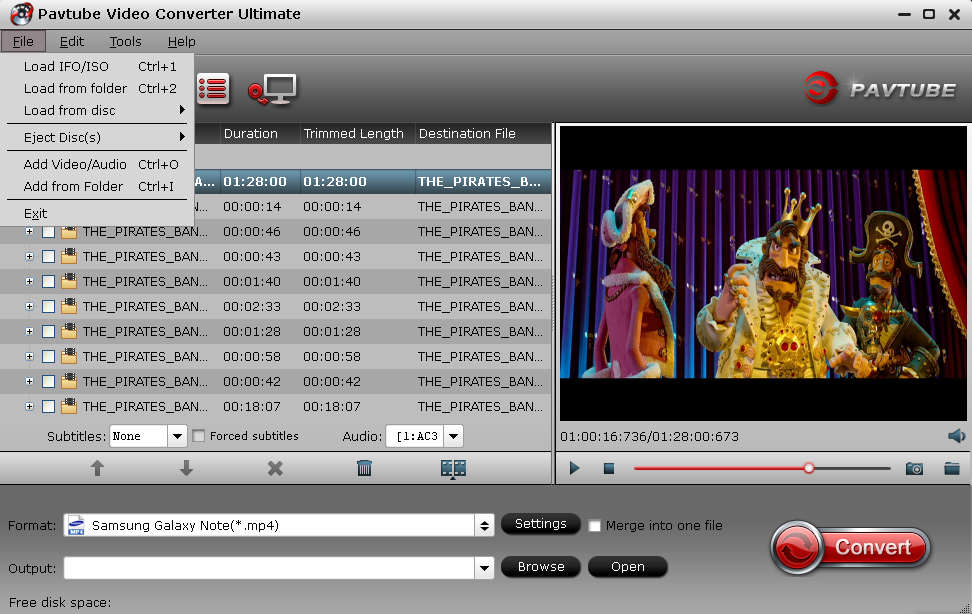
Step 1. Download and install the best tool for Galaxy S5 and launch it to add the video files you want to convert.


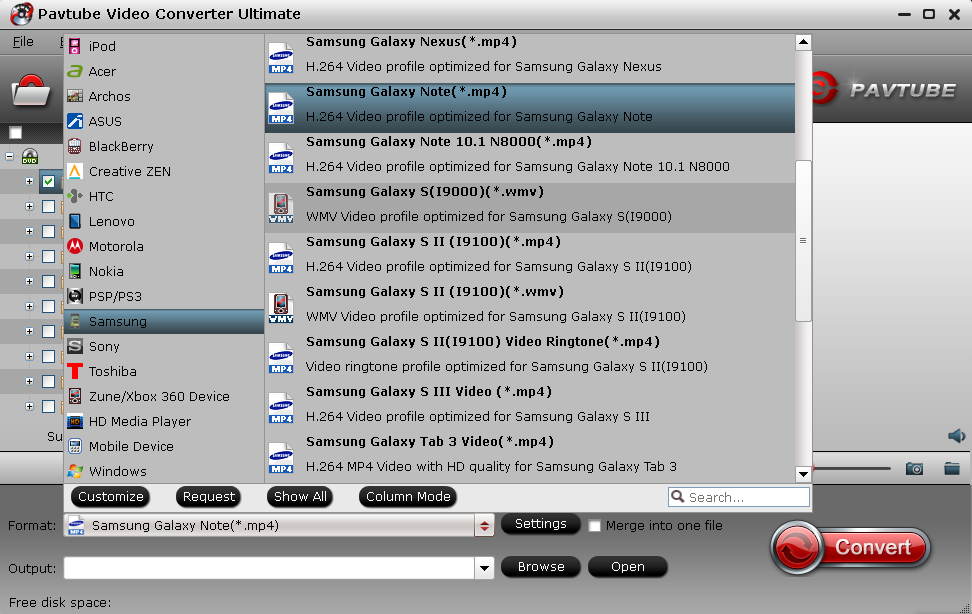
Step 2. Click "Format" bar, you can get optimized videos for your Galaxy S5 under "Samsung > Samsung Galaxy S III Video (*.mp4)". The output videos could fit on Galaxy S5 perfectly.


Tip: 

Click the "Settings" icon and you can adjust codec, bit rate, frame rate, sample rate and audio channel in the interface according to your needs and optimize the output file quality.

If you want to edit your video like trimming video length, cropping video size or add watermarks, etc. you need to click the "Edit" to start operation.

Step 3. Start converting MKV, AVI, VOB, M2TS, WMV, FLV videos to Samsung Galaxy S5 via hitting the "Convert" button.

After the conversion, and you can transfer MKV, AVI, VOB, M2TS, WMV, FLV, etc files to Galaxy S5 from PC for smooth playback without any problem. 

If you are Mac user, this guide is a transfer for you.

More Articles

Converting MKV, AVI, VOB, Tivo, M2TS, WMV, MPG, WebM, MVI, FLV to Android Tablet & Smartphone on Windows 8.1/8

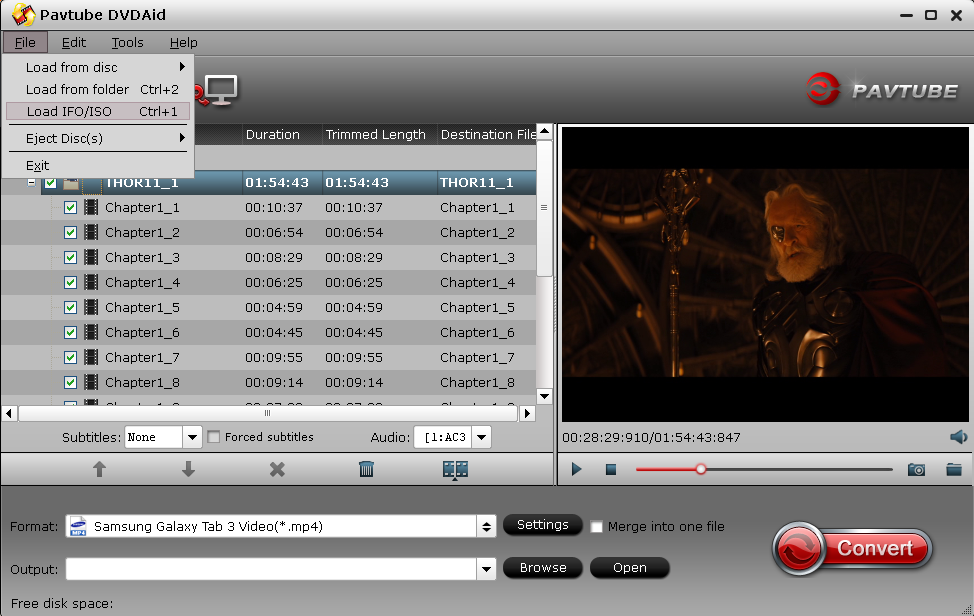
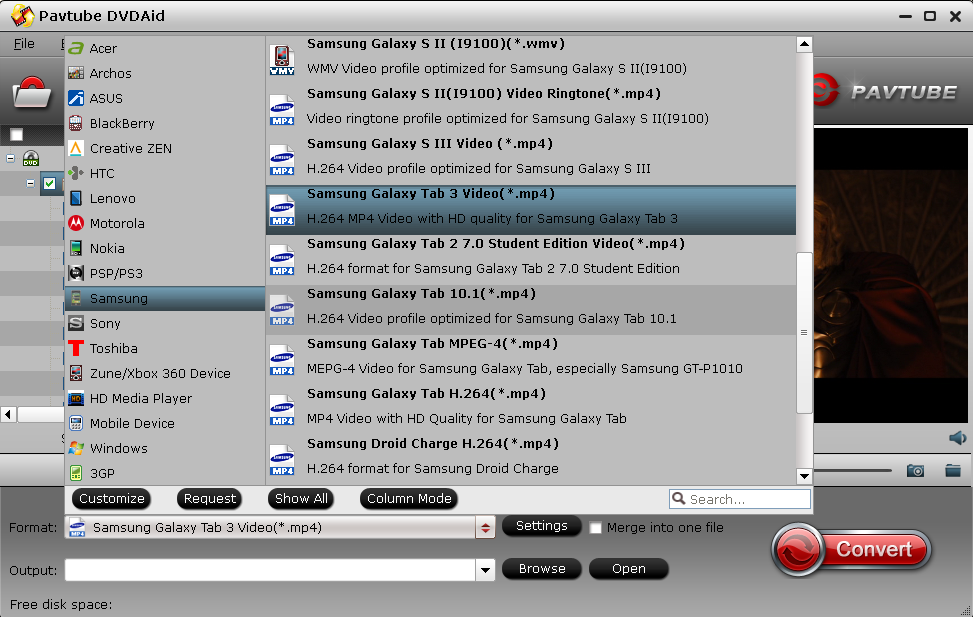
Add and convert DVD VOB movies to Galaxy Tab 3 playable mp4 format

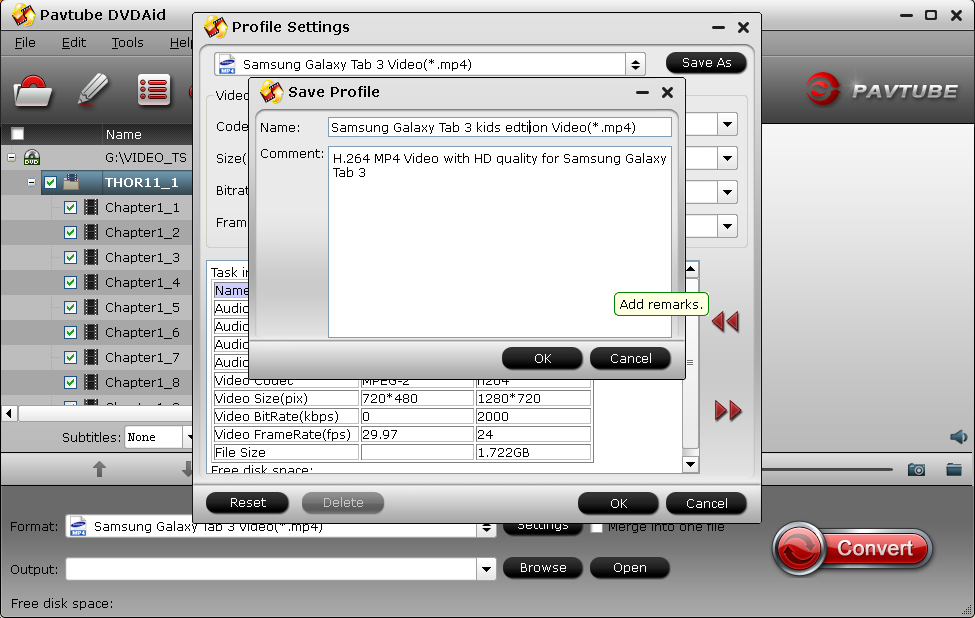
The simplest solution of put MKV/AVI/VOB/MPG/WMV/TiVo/FLV/MVI/WebM videos to Galaxy Tab 3 Kids edition

Wednesday, May 28, 2014

How to enjoy various movies/TV series/Home videos on Samsung Note 10.1 easily and comfortably

Summary: This summer, do you have any plans? After reading this document, I think your journey will be even more exciting with enjoying movies and TV series or Home videos any time and any where.


After a busy few months, Let's take a break. In the summer, How do you plan? Adventure travel? Or with the family, go on a picnic? Or stay home and spend time with your family? But I think Any of the plans, the movie can not be missing. Now handheld devices now increasingly able to meet the needs of us. For example, Samsung Note 10.1, although it's just a tablet, and it is a shame that Galaxy Note 10.1 is short of micro-USB port and HDMI port. Admittedly however, it is still good to enjoy videos on Galaxy Note 10.1 who has split screen, Quad-core processor and 7000mAh non-removable battery. That is to say, we can use web browser or write Email while playing a video or music without much worry on speed and power problem. And we can transfer the DVD/Blu-ray movies and TV series or Home videos to Samsung Note 10.1 after we convert them on our PC.

First: Rip DVD to Galaxy Note 10.1 Free on Computer

If you want to rip DVD/Blu-ray movies and TV series or Home videos to PC, we need a software which can rip the DVD/Blu-ray we have and can load the TV series or Home videos and able to give us very good video quality. For Home video, we more hope that the software has editing features, which can remove bad, and can add some of the things like watermark, subtitle, etc. they want to add. Software to meet the above requirements, the preferred isPavtube Video Converter Ultimate, Pavtube iMedia Converter for Mac is version for Mac users.

Step 1: Install and run this Pavtube Video Converter Ultimate, insert a DVD in your DVD-ROM of PC, (If you convert Blu-ray, you must insert Blu-ray disc in Blu-ray player, maybe you deal with
the Home Video, you can load the video form "File > Add Video/Audio" )and load DVD by clicking on the first button on the top.


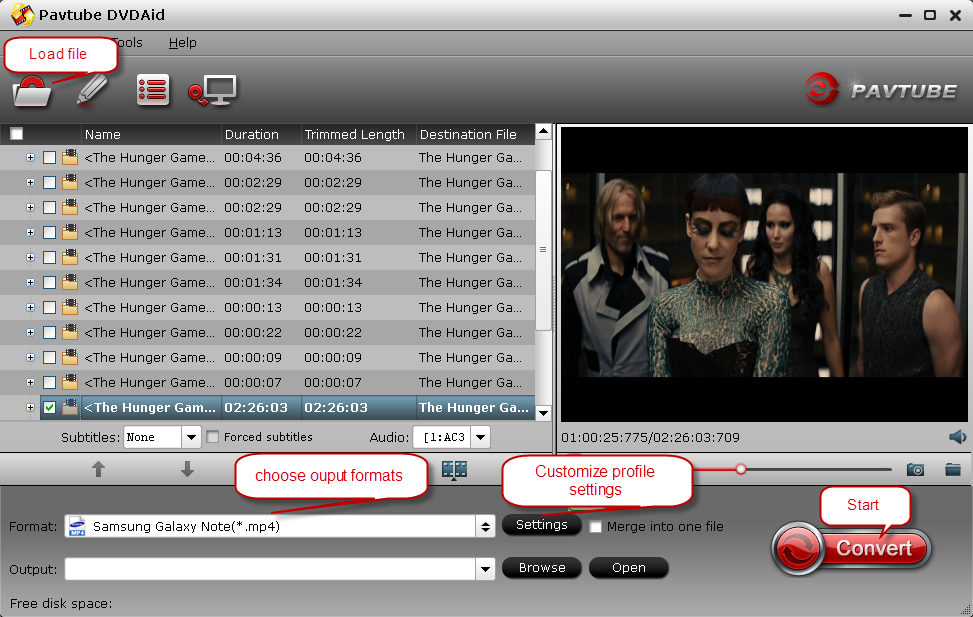
Step 2: Click on "Format" drop-down box to choose "Samsung > Samsung Galaxy Note (*.MP4)". Then you can click "Settings" to choose the most suitable profile and parameter for your Android device Galaxy Note 10.1. (Pavtube offers the best parameter for each of our devices, you can choose the default settings.)


Step 3: Just "Convert" the best DVD to Samsung Galaxy Note 10.1. Complete the transformation, we can transfer video to Galaxy Note 10.1 from PC.

Second: Transfer video to Galaxy Note 10.1 from PC

This Android gadget has a big disadvantage that PC connection shares a common port with battery charging. Therefore, before you begin to take action in converting long video, make sure you have more than 20 percentage of battery.

Step 1: Download Samsung Galaxy Note 10.1 driver on line.

Step 2: Make sure you have installed all your USB drivers for connecting Samsung Galaxy Note 10.1 with your computer.

Step 3: Link this Android device with your PC through USB cable.

Step 4: Find the converted DVD video and copy and paste it to your Galaxy Note 10.1. After the transmission is completed, the whole DVD to Galaxy Note conversion is over, so you can enjoy HD video on Android Galaxy Note 10.1 at will. It is suggested to delete the watched file to save more space for your gadget.

Third: More Artices about Pavtube Video Converter Ultimate

Add ASS Subtitles to AVI Video

Enjoy our favorite TV shows and movies on Android Tablet or Phone

How to Sync MKV, AVI, Tivo, VOB, MPG, M2TS to iPhone 5S, 5C, 5?

Thursday, May 22, 2014

Samsung's virtual reality glasses could further immerse you into TouchWiz


Ready for the next big thing? It's most likely shaping up to be virtual and augmented reality. We have players like Google working on Glass and Facebook now working with Oculus. Not to be left alone, Samsung is reportedly making a virtual reality headset to be used with their phones and tablets.

Engadget reports that Samsung's mobile division is working on a virtual reality

headset that will be announced later this year. The South Korean company hopes to beat Facebook's Oculus Rift and other players to market.

This product is set to compete with the Oculus Rift and not Google Glass. We reported earlier this month that Samsung was also interested in going after Glass with their own 'Gear Glass' wearable for late 2014.

Instead, this new device rumored will be a virtual reality headset. It'll have an OLED screen that's as good or better than the one found on the Oculus Rift dev kit. No information is known at this time on how it will connect to your phone or tablet, but a wired connection is probable.

Samsung not only hopes to beat competitors to market, but will also aim to enter in at a lower price point. Samsung's operating system, Tizen, will reportedly not power this virtual reality headset.

Anyone out there interested in a virtual reality headset? Do you see any applications beyond gaming? Sound off below in the comments.

Source: Engadget

Wednesday, May 21, 2014

Samsung Galaxy Note 4 leak: 5.7-inch QHD screen

Even if the Galaxy S5 Prime turns out to be a dud, Samsung's next S-Pen phablet hopefully won't. The upcoming Galaxy Note 4 is now believed to sport a 2K resolution display fitted into a 5.7-inch screen.

This info about the display is interesting on two grounds. First is that, of course, it will have a QHD display. That's a resolution of at least 2560x1440 pixels, the very same that the LG G3 and the Galaxy S5 Prime are said to be contending for. But the most interesting part is the size of the screen, which remains at 5.7 inches. That is the same size as the Galaxy Note 3 and would thus go somewhat against Samsung's trend of increasing screen sizes per generation. Not that it's a bad thing, since we'll end up with a screen with a higher pixel density and a relatively more handy size.

Not much else is known about the Galaxy Note 4. There is still some uncertainty whether it will be running on a Samsung Exynos hexa-core, which might be a downgrade from the usual octa-core, or a Qualcomm Snapdragon 801. Chances are, it could be both, depending on the market, region, and features. Speaking of market differences, the model number listed in this leak for the Galaxy Note 4 is a G910, with the last digit left for identifying the processor or carrier variant.

Even if the Galaxy Note 4 did come with a QHD screen, it might be following behind the LG G3, depending on when Samsung announces the device. It usually unveils a new Galaxy Note phablet during the third quarter of the year, which would be a few months later than the G3's May reveal.

Wednesday, April 30, 2014

Convert DVD (ISO) to Samsung Galaxy Mega 5.8 & 6.3

Summary: Enjoy big-screen mobile phone? enjoy the visual effects from Galaxy Mega 5.8 & 6.3? Here we will introduce how to convert DVD to the formats supported by Galaxy Mega 5.8 & 6.3, let us enjoy DVD (ISO) movies on Galaxy Mega 5.8 & 6.3 carefree.


In this era, mobile phones is important than computers, we use the phone to query information; When we lost disoriented on the road, we are using a mobile phone navigation, convenient! With mobile performance is getting better, the screen bigger and bigger, more of us are using mobile phones to watch a variety of videos, TV shows or movies. With development of the phone, more and more communities will begin to run on the phone, so we can have more friends and a wider circle of friends. In summary, the performance of the phone, the phone's pixel resolution, and the size of the screen become necessary to require us to buy mobile phones.

Samsung grabbed our requirements, Samsung Galaxy Mega 5.8 and 6.3 were announced on April 11, 2013. First version is Samsung Galaxy Mega 6.3, which have a 6.3 in (160 mm) screen with a 1.7GHz processor and delivers 8GB or 16GB of internal storage. And the second version is Samsung Galaxy Mega 5.8, which has a 5.8 in (150 mm) screen with a 1.4GHz dual-core processor and 8GB of internal memory. Both are  powered by Android 4.2.2 "Jelly Bean" software and a dual-core processor. An 8-megapixel rear-facing cameras and 1.9-megapixel front-facing cameras are also included to Samsung Galaxy Mega Smartphones. The 5.8-inch display will have a resolution of 960 x 540 with the 6.3-inch screen sporting a 1280 x 720 resolution.

But each phone has its advantages and disadvantages, such as Galaxy Mega 5.8 & 6.3 does not support all video formats, Galaxy Mega 5.8 & 6.3 only supports MPEG4, WMV, H.264, 3GP formats and so on, and there is no way to paly DVD on it, DVD ISO is not allowed. This means that if you want to play DVD disc on the Galaxy Mega 5.8 & 6.3, you must convert DVD to its supported format. Simply take a look at the following guide, which will focus on how to convert videos/DVD (ISO)movies to Samsung Galaxy Mega smartphones. 

How to convert DVD (ISO) to Galaxy Mega 5.8 & 6.3

Step 1: Download and install Pavtube DVDAid

Please download and install it on your computer first. And then run this Samsung Galaxy Mega 5.8 or 6.3. If you are Mac user, you can try Pavtube DVDAid for Mac.
  
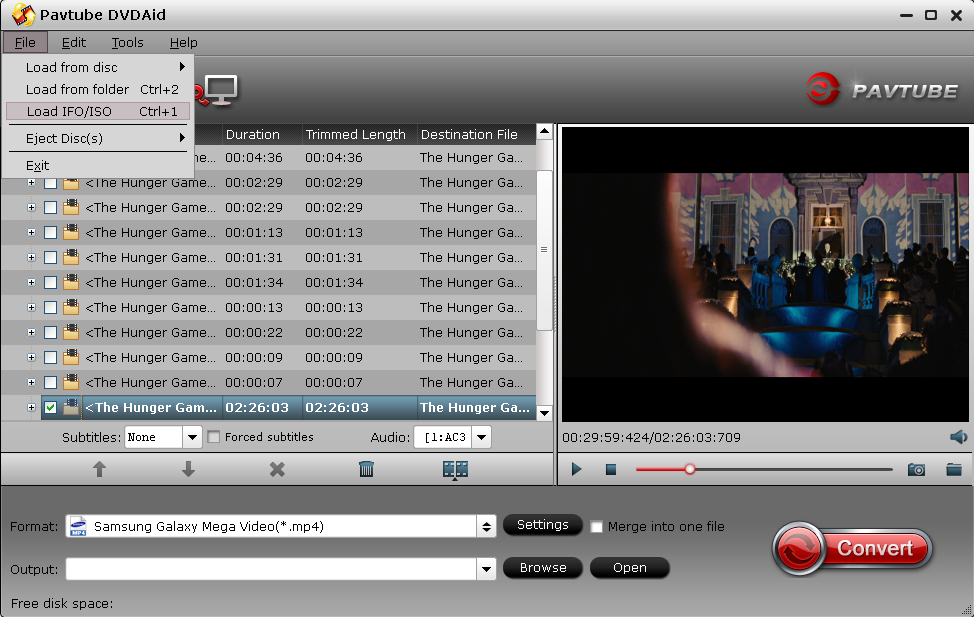
Step 2: Import DVD or DVD ISO/IFO files to the program.


Step 3: Choose target video formats for Galaxy Mega 6.3 and Galaxy Mega 5.8.

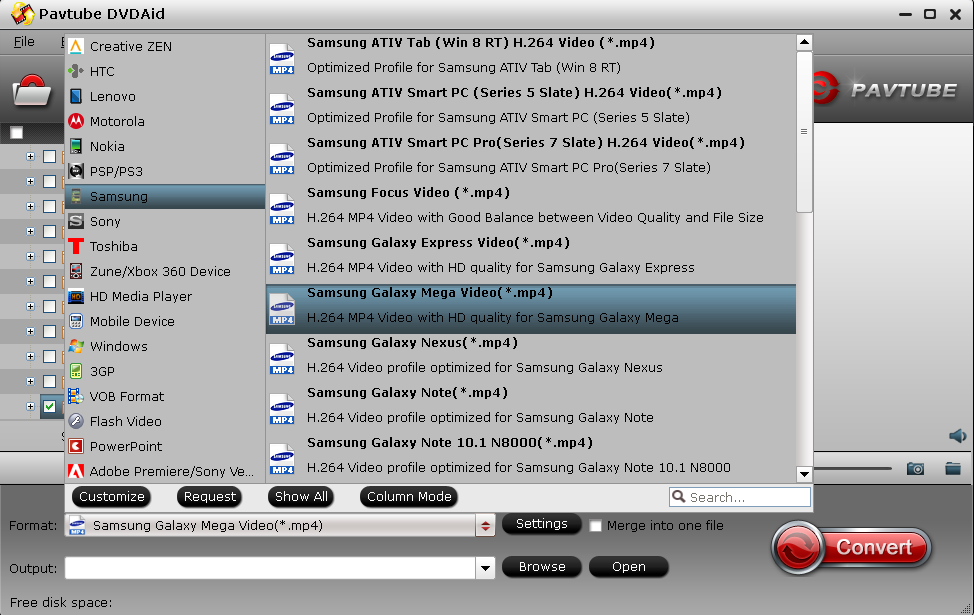
Since both Galaxy Mega 6.3 and Galaxy Mega 5.8 supports MPEG4, WMV, 3GP, H.264 video formats, Choose output format for Galaxy Mega. Here I suggest you selecting "Samsung Galaxy Mega Video(*.mp4)".


Note:
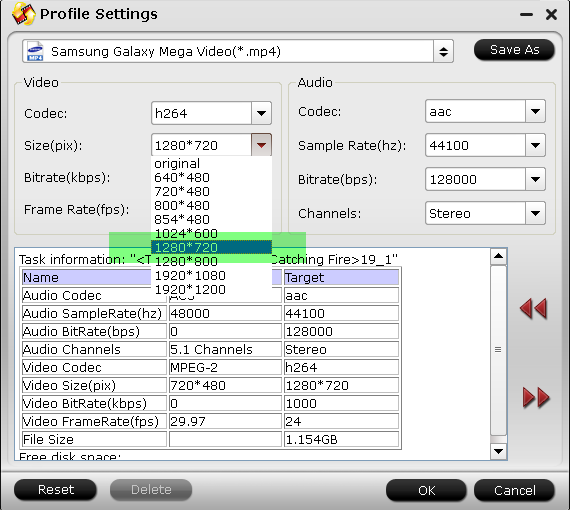
In order to get the best video quality on Galaxy Mega 6.3/5.8. Here you'd better click "Settings" to adjust size as "1280*720". But, if the resolution of your movie is lower than 720p, I don't suggest you doing this, you can choose "Original" to keep the original video resolution.


Step 4: Start converting DVD to mp4 for Galaxy Mega by clicking on "Convert" button.

After that, you can click here to know more about how to transfer media (music, video, photo) files to Samsung Galaxy.
  
know more about Galaxy Mega 5.8 & 6.3

Galaxy Mega 5.8 VS Galaxy Mega 6.3 VS samsung-galaxy-grand-duos-534

Samsung Galaxy Mega 5.8 Specs and Galaxy Mega 6.3 Specs

How to Rip 3D Blu-ray movie to SBS 3D MP4 video for playback on your 3D devices?

Convert 1080p or 720p Movies in Blu-ray, DVD on Windows 8.1 Tablet/Phone

Tuesday, April 29, 2014

Samsung 3D LED TV (32" Inch and 40" Inch)

32" Inch Samsung 3D LED TV 

  • Model No. 32F6100 
  • USB Option 
  • HDMI Ports 
  • 3D 
  • 2 Free 3D Glasses 
  • Audio Video Support 
  • Slim Panel 
  • Excellent Sharpness 
  • Video Input Output 
  • Slim Attractive Panel 
  • And Many More
40" Inch Samsung Smart+3D LED TV 

  • Model No. 40F6400 
  • SMART TV Web Browsing 
  • PlayStore Installed 
  • Facebook/Skype/Twitter Installed 
  • 3D Option 
  • 2D To 3D Option 
  • USB Option 
  • HDMI Ports 
  • Audio Video Support 
  • Slim Panel 
  • Excellent Sharpness 
  • Video Input Output 
  • You Can Use Mouse,Keyboard And WebCam 
  • BuiltIn WIFI 
  • Android Operating System 
  • Memory BuiltIn 
  • Slim Attractive Panel 
  • And Many More

Monday, April 28, 2014

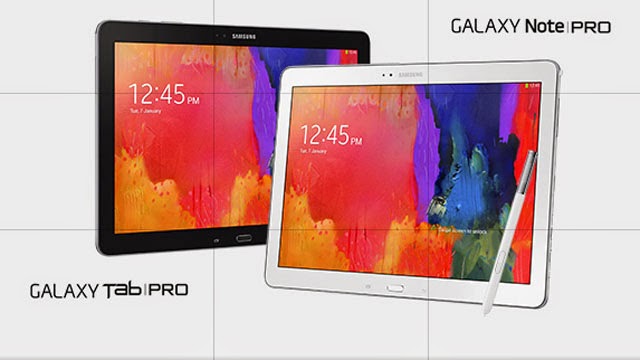
Convert DVD to Galaxy Note Pro 12.2

Summary: Samsung introduced new version of its Galaxy Tab-Galaxy Note Pro 12.2. It can be said that it is produced for watching video. However, if it is just for the online video, which really a pity. This document will help you to open the video boundaries, enjoy DVD on Galaxy Note Pro 12.2.


Samsung Galaxy Note Pro 12.2, is unanimously welcomed by everyone  since listing. Walking in the electronics area, its big screen caught our attention. And some people think that this size is too big for the tablet, but some people say it is just right for them, take example from the life, watch movies in bed by holding the computer or Mac, it will feel very tired soon. If holding a compact mobile phone, lying in bed to watch movies, you will always feel interface screen is too small, and a lot of the details have not been able to be seen. Such size, has a good perspective, is very appropriate.

As we all know, like other handheld devices, we could not just enjoy the DVD movies on Galaxy NotePro 12.2 directly without conversion. Perhaps you have been attempted some conversion, and have tried to use some conversion software. But there are some place you are not satisfied, for example,the bad image quality, the output file plays very narrow like it doesn't scale to the right size on my Galaxy NotePro 12.2 tablet and in attempt of converting a recently released DVD, you get "import error" and so on.

To "dismiss" these issues, what you need is a yet professional and easy-to-use DVD ripping tool that can make a perfect DVD to Galaxy NotePro 12.2 Tablet conversion-Pavtube DVDAid. It provide the easiest and fastest way to rip and convert DVD movies to MP4 and many other video and audio formats with high quality With the help of NVIDIA's CUDA/ATI Stream technology.

It also has the Mac version: Pavtube DVDAid for Mac.

How to convert DVD to Galaxy NotePro 12.2 Tablet

Step 1. Import DVD movies to the program.


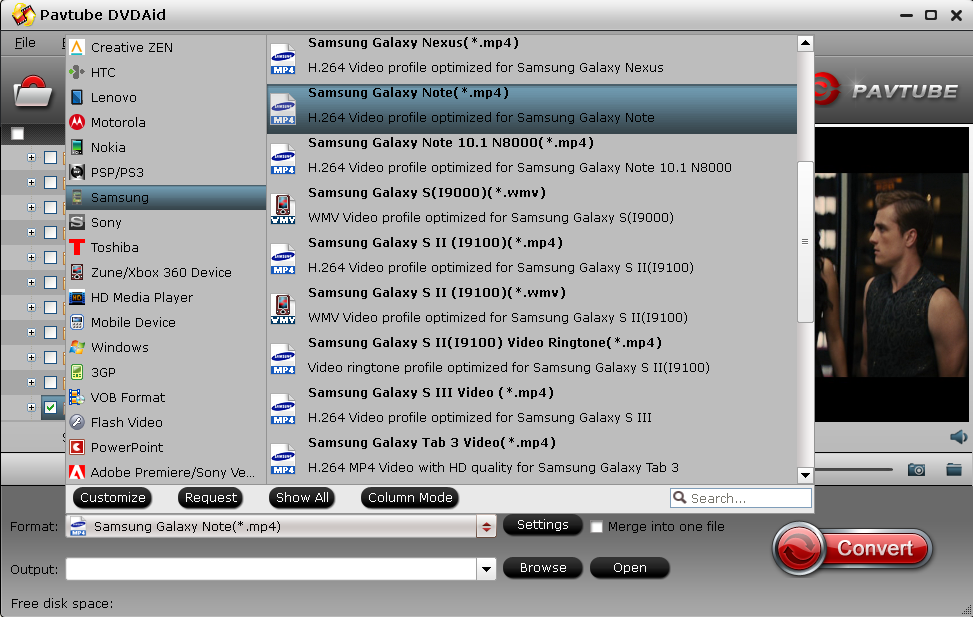
Step 2. Choose output format.

Choose output profile “Samsung Galaxy Note (*.mp4)” in the profile drop-down list. For better enjoy videos on Samsung Galaxy NotePro 12.2, you can customize video and audio options, such as Video Codec, Video Bitrate, Audio Codec, Audio Bitrate, Audio Channel, etc.


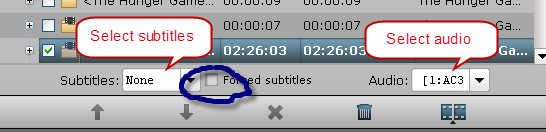
Tip: Because DVD always contains multiple subtitle and audio tracks, you can go to choose the desired subtitle and audio on the interface for output. Beside subtitles option, "Forced subtitle" is optional and uncheck by default. Go to check "Forced subtitles" for output. Take note that it will output forced subtitles only if it is checked.


Step 3. Start converting DVD movies.

When all is OK, simply click "Convert" to begin the ripping process. After the conversion is over, find your output video, and then you could transfer it to your Galaxy NotePro 12.2 via USB cable.

May be you don't know how to sync the converted video to Galaxy Note Pro 12.2, click here to get the multiple ways.

If you want to transfer HD Videos and Movies to SamSung Galaxy NotePro 12.2, here is guide for you!

At the beginning of the article, simply to introduce Galaxy Note Pro 12.2, if you want to get more it, please visit here

Sunday, April 27, 2014

Samsung Galaxy Tab 4 line hitting U.S. shelves on May 1

Samsung has today announced US availability for the Galaxy Tab 4 family of Android tablets. The Tab 4 7.0, 8.0 and 10.1 will be available on May 1st with pre-orders kicking off as early as tomorrow. If you're looking for rather decent hardware with some interesting features, the Tab 4 lineup is worth checking out. 


Each model has a 1280x800 resolution display, a 1.2 GHz quad-core CPU, Android 4.4 Kitkat, 1.5GB of RAM and 16GB of on-board storage with an option for an 8GB version of the 7-inch. Cameras on each are 3MP and 1.3MP. So just how much will these tablets set you back by? The Wi-Fi enabled Galaxy Tab 4 7.0, 8.0, and 10.1 will be priced at $199.99, $269.99 and $349.99, respectively. 

Inspiring Mobile Freedom in Your Life 

* Perfect for all ages, Samsung’s next-generation Galaxy Tab4 line offers an exceptional multimedia experience in a more premium and portable design, making it ideal for viewing or sharing content with friends and family. 

Rich Multimedia Experience 

* Available in 10.1-inch, 8.0-inch and 7.0-inch screen sizes, the Galaxy Tab4’s vivid WXGA display with a 16:10 screen ratio provides users with a brilliant viewing experience while watching videos, playing games, or reading digital contents. 

* With Multi Window functionality, users are able to seamlessly switch between apps and windows, as well as drag and drop contents with ease. 

Fun & Shareable Services 

* The new Galaxy Tab4 line is perfect for the whole family as it comes equipped with a number of fun and shareable services allowing users to access content and stay connected with friends wherever they are, including: 

1. Group Play: Share and play music, documents and games with friends in realtime 
2. Samsung Link: Share and play content across smart devices anytime, anywhere 
3. WatchON: Watch TV shows and movies on any device, anywhere in your home or on the go. 

* Availability of features and functions listed above may be differed by device type or regions. 

Not all services will be provided. Please check product specification sheet for each product for details. 

Sleek & Portable Designs 

* The Galaxy Tab4 line all feature a textured, premium look and feel back cover. 
* With a slim design and weights, the Galaxy Tab4 10.1-inch, 8-inch and 7-inch models provide maximum portability while still allowing users to enjoy beautiful screens. 

The new Samsung Galaxy Tab4 line will be offered in a choice of Black or White globally beginning in 2Q, 2014. 

Sunday, April 27, 2014 

Tips and Tricks for Samsung Galaxy Tab 4 (Specifications and Video Playback Tips) 
Summary: This article will give you tips and tricks for Samsung Galaxy Tab 4 including Galaxy Tab 4 Main Specs as well as both Windows/Mac Soulution for watch all kinds of media files on Galaxy Tab 4 anytime and anywhere. 

Next-generation Galaxy tablet series delivers exceptional multimedia experience for the whole family in a sleek, lightweight design 

Inspiring Mobile Freedom in Your Life 

* Perfect for all ages, Samsung’s next-generation Galaxy Tab4 line offers an exceptional multimedia experience in a more premium and portable design, making it ideal for viewing or sharing content with friends and family. 

Rich Multimedia Experience 

* Available in 10.1-inch, 8.0-inch and 7.0-inch screen sizes, the Galaxy Tab4’s vivid WXGA display with a 16:10 screen ratio provides users with a brilliant viewing experience while watching videos, playing games, or reading digital contents. 

* With Multi Window functionality, users are able to seamlessly switch between apps and windows, as well as drag and drop contents with ease. 

Fun & Shareable Services 

* The new Galaxy Tab4 line is perfect for the whole family as it comes equipped with a number of fun and shareable services allowing users to access content and stay connected with friends wherever they are, including: 

1. Group Play: Share and play music, documents and games with friends in realtime 
2. Samsung Link: Share and play content across smart devices anytime, anywhere 
3. WatchON: Watch TV shows and movies on any device, anywhere in your home or on the go. 

* Availability of features and functions listed above may be differed by device type or regions. 

Not all services will be provided. Please check product specification sheet for each product for details. 

Sleek & Portable Designs 

* The Galaxy Tab4 line all feature a textured, premium look and feel back cover. 
* With a slim design and weights, the Galaxy Tab4 10.1-inch, 8-inch and 7-inch models provide maximum portability while still allowing users to enjoy beautiful screens. 

The new Samsung Galaxy Tab4 line will be offered in a choice of Black or White globally beginning in 2Q, 2014. 

Galaxy Tab4 10.1 Product Specifications 


Galaxy Tab4 8.0 Product Specifications 


Galaxy Tab4 7.0 Product Specifications 


Know more What about video and audio files Galaxy Tab 4 does not natively support? 

Wednesday, April 16, 2014

DVD ISO/IFO image files to Galaxy Tab 3 Kids edition

Summary: Want to watch movies on Galaxy Tab 3 Kids edition ? Want to play DVD ISO/IFO files on Galaxy Tab 3 Kids edition? Maybe you will find a lot of movie format is not supported by it, but also DVD ISO/IFO can not be directly playing. This document will give us a simple and effective way to help us achieve the purpose. 


Samsung Galaxy Tab 3 Kids edition got all the praise since it was listed in 2013, and got the parents and the child's favorite, his special monitoring received the unanimous endorsement of parents, so parents are assured to the child of such a tablet. It uses a dual-core 1.2GHz processor and a 7-inch 1,024 x 600 screen, and with a front and rear camera and 8GB built-in storage capacity (supports microSD card expansion). But it is relatively less supported formats, and many common video formats are not supported. And In order to keep DVD discs from scratching or manage the movies in a more convenient way, most folks are fond of backing up DVDs into and ISO/IFO image files. ISO can be played by VLC, MPlayer, KMPlayer, etc. However, neither DVD ISO nor IFO is supported by Galaxy Tab 3 Kids edition. 

If you have some ISO/IFO image files and wanna play them on Galaxy Tab 3 Kids edition, you may have to convert ISO/IFO to Galaxy Tab 3 Kids edition compatible video formats first and then transfer the encoded video files to your Galaxy Tab 3 Kids edition for playback. 

(Want to know more supported formats by Galaxy Tab 3 Kids edition , please click here.) 

So, we need a very powerful software to solve this problem, here recommended Pavtube DVDAid,it is best helper to solve such problems. (you can google DVD ripper review, you will find this article, and Pavtube DVDAid is the top.). It can convert the protected DVD and change DVD movies to various formats supported by the device. The Video & Audio effect is very good, the operation is very simple. When you download this software on your computer, you can perform the following actions. 

Tip: Now Pavtube offer the free version on facebook: https://www.facebook.com/pavtubefans/app_193168050721272 

If you want to know more about it, you can read this article. 

How to convert DVD ISO/IFO image files to Galaxy Tab 3 Kids edition 
Step 1: Import your DVD ISO/IFO. 


Step 2: Select the format and set the parameters 

Now click "Format" bar and move mouse to "Samsung" column, you can easily find the profile of "Samsung Galaxy Tab 3 Video (*. Mp4)". 


Then you can click on the back of "Setting button", select the appropriate parameters according to their own devices. The best parameters for Samsung Galaxy Tab 3 kids Edition is following. 

Video 

Codec: h264 

Size(pix): 1024*600 

Bitrate(kbps): 1500 

Frame Rate: 24fps 

Audio 

Coder: aac 

Sample Rate(hz): 44100 

Bitrate(bps): 128000 

Channel: Stereo 

Know more about the best setting of Galaxy Tab 3 Kids edition of the best settings 
Tip: If you want to convert more movies to the Galaxy Tab 3 Kids edition, and every time you have to set the parameters, which is wasting time, so you can save the settings named by device name, here is Galaxy Tab 3 kids Edition. The formation is default parameters, When you convert next time. 


Step 3: After setting up, you can convert it. 

After the conversion is complete, you can play on your own computer 
or copy to other devices, such as transfer video files to Galaxy Tab 3 Kids edition. 

More Topics: 

How to get a Samsung Galaxy Tab 3 Kids Edition to preference the SD card?: Here's how you can move application data from internal storage to SD card and make space for more apps on a Samsung Galaxy Tab 3 Kids Edition. 

Play DVD movies on Galaxy Tab 3 Kids edition: This article will show you how to copy the DVD movies to Galaxy Tab 3 Kids edition. 

convert Blu-ray movie to Galaxy Tab 3 Kids edition: This article shows you the easiest way to convert Blu-ray Movies to Samsung Galaxy Tab 3 Kids edition supported video formats then you can watch Blu-ray on Galaxy Tab 3 Kids edition anytime and anywhere.
Sunday, April 13, 2014

Galaxy Tab 3 Kids Edition Support Video Formats

Galaxy Tab 3 Kids Edition is tailored for children, parents trust worthy mobile tablet. It uses a dual-core 1.2GHz processor and a 7-inch 1,024 x 600 screen, and with a front and rear camera and 8GB built-in storage capacity (supports microSD card expansion). Product package with non-slip edge border, the software part is used for children optimized custom Android 4.1 system. There are 300 specially designed apps for children like educational, games, e-book applications, and it creates a new interactive learning experience for children. Parents can use a unique management capabilities to set, time and download the appropriate application for children. Let the children will not indulge in playing flat. 

Such a great device, I think parent will be tempting and every child wants to have one! Perhaps you now have had such a device. But you may have such confusion: You want to download some cartoons or movies for kids, but frustrated that some of the video files just don't seem to playback very well or not recognized by it at all! So Does not it support the video files? Do you know the supported video formats for playback on Galaxy Tab 3 Kids? Check this out. You're guaranteed to know your device much more after this as well as the best video settings and format for your device. 

Part 1: Supported Video Formats for the Samsung Galaxy Tab 3 Kids 

Part 2: Best Video Setting for Galaxy Tab 3 Kids 

Part 3: Preset Video Settings for Galaxy Tab 3 Kids 

Part 1: Supported Video Formats for the Samsung Galaxy Tab 3 Kids 

Video Format 

H.263, H.264, MPEG4, WMV, DivX 

Audio Format 

AAC, AAC+, AMR-NB, AMR-WB, eAAC+, MP3, OGG, WAV, WMA, AC-3, FLAC 

You can click HERE for more details into the respective codices that are compatible with the device. 

Part 2: Best Video Setting for Galaxy Tab 3 Kids 

Look out for the best video setting for your videos to ensure a smooth, high-quality and enjoyable playback on your Galaxy Tab 3 Kids 

Video Settings
  • Coder: H.264 
  • Resolution: 1024 x 600 
  • Bitrate(kbps): 1500 kbps 
  • Frame Rate: 24fps
Audio Settings
  • Coder: AAC 
  • Sample Rate: 44100Hz 
  • Bit Rate: 128000 kbps 
  • Channel: Stereo
From the file formats listed in Part 1, we can see that it supported formats are very few , So a lot of other video formats can not be playing on Galaxy Tab 3 Kids, for example M4V, WMV, AVI, FLV, MKV etc. However, these video formats are very common. So how to realize playing such a video format on it? Simultaneously, May be you want to download and play DVD/Blu-ray movies for your kids, especially Disney movies. You will find it can not to play it directly. 

Dont't worry! The Pavtube video converter ultimate will be able to fix it out for you. It can convert DVD/Blu-ray disc to different formart. Then you can copy the video files to Galaxy Tab 3 Kids. If you are Mac user, you can download Pavtube iMedia Converter for Mac. 

Part 3: Preset Video Settings for Galaxy Tab 3 Kids 

It'll be more annoying when you have to type in the video settings yourself after being prompted with an error message that your video format is not supported. Hence, it's more considerate when it's in a preset for your convenience, just like the Pavtube video converter ultimate. 

All you have to do is choose your brand or model of device from the built-in preset and it will automatically convert your video files to suit the best playback setting as mentioned in Part 2. 


Tip: 

Transfer DVD ISO/IFO on Galaxy Tab 3 10.1 freely: This article is mainly talking about how to backup DVD ISO/IFO movies onto Galaxy Tab 3 10.1. Help you watch DVD ISO/IFO images on Galaxy Tab 3 10.1 freely. 

Transfer media (music, video, photo) files to Samsung Galaxy Note 3: Learn the 2 most popular methods to transfer media (music, video, photo) files from PC to Samsung Galaxy Note 3. 

Convert Blu-ray movies to Samsung Galaxy Tab 3: This article shows you the easiest way to convert Blu-ray Movies to Samsung Galaxy Tab 3 Kids edition supported video formats then you can watch Blu-ray on Galaxy Tab 3 Kids edition anytime and anywhere. 

Friday, April 11, 2014

Samsung Galaxy S5, gear fit, gear 2 and gear e neo now available in stores nationwide


Flagship Galaxy S5 and wearables range available at all major retailers and Samsung Experience Stores across the UK from today

11 April 2014, London, UK – Samsung UK today announced that the Galaxy S5 and its new range of wearables devices – which includes the Gear Fit, Gear 2 and Gear 2 Neo – are now available to buy from all major retailers in store and online, as well as at Samsung Experience Stores across the UK. The newly launched devices are now on the shelves in 125 countries including the US, Europe, the Middle East, Latin America, and most Asian markets.

Announced in February at Mobile World Congress in Barcelona, the fifth generation of the Galaxy S series has been eagerly anticipated ever since its unveiling. Superior camera functionality, the ability to download data and content faster than ever before and a range of exciting new health and wellbeing features all mean that the Samsung Galaxy S5 enhances and enables peoples’ mobile lives.

Those who pre-ordered the Samsung Galaxy S5 were able to collect the device from one of nine new Samsung Experience Stores, which opened across the UK this week, as well as from the Samsung Experience Store at Westfield Stratford City, from 6pm last night. Customers were treated to a champagne reception whilst a dedicated expert helped them to set up their devices, plus they were offered Smart Academy demos to teach them more about their new smartphone.

The Samsung Experience Stores, launched in partnership with the Carphone Warehouse are now open in the following UK locations: London Oxford Street, Newcastle Northumberland Street, Liverpool Paradise Street, Bradford Darley, Bristol Cribbs Causeway, Manchester Market Street, Bournemouth The Avenue Centre, Cardiff Queen’s Street and Newcastle MetroCentre.

Rolling out across the UK, Sweden, Ireland, Germany, Spain, Portugal and the Netherlands, the stores combine a premium look and feel with intuitive technology to provide the ultimate in-store customer experience. These technology one-stop shops also allow customers to buy content for their devices straight from the high street for the first time.

Simon Stanford, Vice President of IT & Mobile division, Samsung Electronics UK & Ireland said: “The response to the Galaxy S5 and our new wearables line since Mobile World Congress has been phenomenal and we’re delighted our customers across the UK are now able to get their hands on them and try them out for themselves. Designed with a number of innovative and essential features for day-to-day use, we can’t wait to hear what our customers think.”

Samsung has today released a new global TV ad, “My Life Powered by Galaxy S5,” highlighting how the new device delivers the capabilities that matter most to people. It was directed by Tarsem Singh, best known for his work on REM’s “Losing My Religion” music video, as well as films including “Mirror Mirror” and “Immortals.” You can check it out for yourself by visiting http://youtube.com/samsungmobile.

To further celebrate the launch of the Galaxy S5, Samsung is also offering Galaxy device owners the exclusive FIFA 14 mobile game. Available exclusively on the Galaxy S5 and other Galaxy devices starting from today, Samsung customers will have a unique opportunity to play against the Samsung Galaxy 11* team as part of a partnership with EA SPORTS FIFA 14 mobile game. The Galaxy 11 team, which features world-class football players including Lionel Messi, Cristiano Ronaldo and Wayne Rooney, will be available in the game’s Ultimate Team mode. You can attempt to take down the best players in the world, who have also been tasked with saving the Earth, for the chance to win a special FIFA 14 prize pack.