Summary: Have you met this situation that there is no embedded subtitle in AVI movie files? Want to add external subtitles like ass to AVI video? This article will introduce a simple way to easily add subtitles to AVI movies.
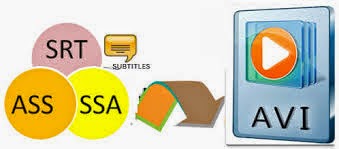
As we all know, to ensure the video quality, a large portion of movies are in AVI format. But it is very disappointing when we watch some wonderful AVI movies in foreign language but find there is no subtitles, right? Maybe you still have this kind of experience, to watch the movie which is filmed by other countries, you are probably not familiar with the foreign language or you don't understand that language at all, so you can not keep pace with the rapid changing dialogues. In this case, the best way is to add subtitles to AVI movie.
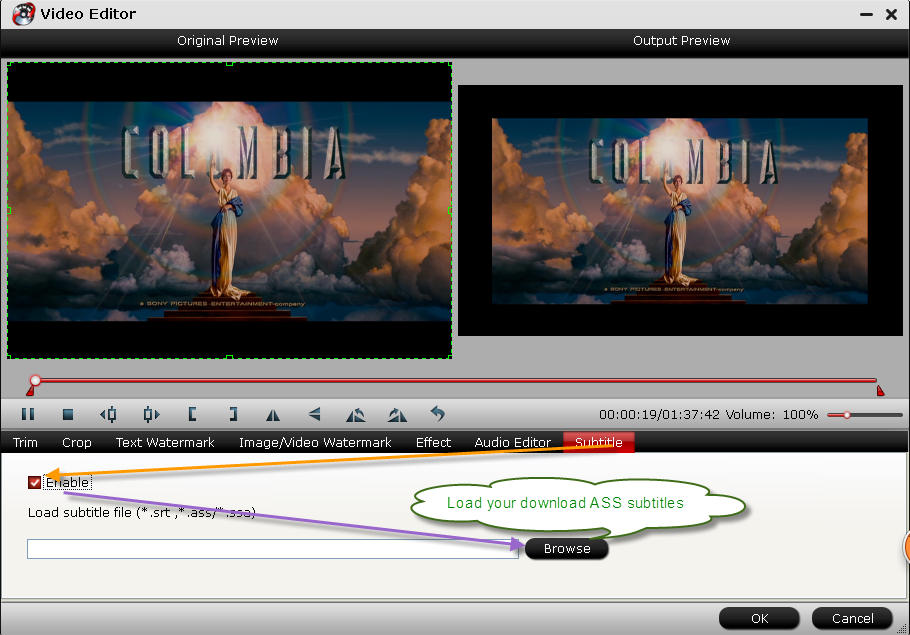
Nearly all Media Players for computer could allow users to load subtitles thus to let people watch movies in familiar subtitles. People only need to download corresponding subtitles from the internet. But how to add subtitles to video easily? Even, you want to attach external subtitles to videos or movies which be playing on your mobile devices, What we need is a good tool. Here, let's look at how to add subtitle to AVI file in detail. You can just follow the below steps to know how to add external ASS subtitles to AVI videos for playback.
Pavtube Video Converter Ultimate also can help to add subtitle to AVI video files. It supports adding all kinds of subtitles to AVI video whatever the subtitle is in .srt, .ass, .ssa, etc. If you are using a Mac, please turn to Pavtube Video Converter Ultimate for Mac.
How to Add ASS Subtitles to AVI Video?
Step 1: Some preparation work, including: download and install this program on your computer; get ASS subtitles ready (You can download ASS subtitles online if you haven't got one).
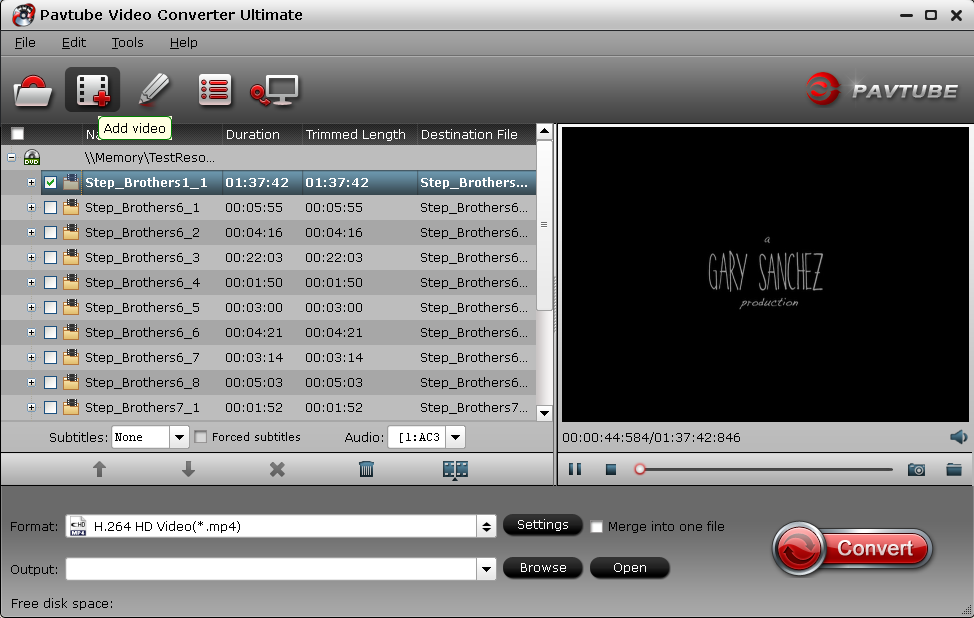
Step 2: Launch the program and import AVI movies to the app. After loading, the imported movies would be listed on the left processing list panel.
Tip: You can change the subtitle size, style, font if necessary. When everything is done, simply click "OK" button. Plus, you can also add watermark, apply effects, and crop, trim your AVI files in the above video editing window.
Step 3: This is important.
To add ASS to AVI (to keep the output video as AVI with subtitle), click the "Format" drop-down button to select AVI format from the Common Video profile.
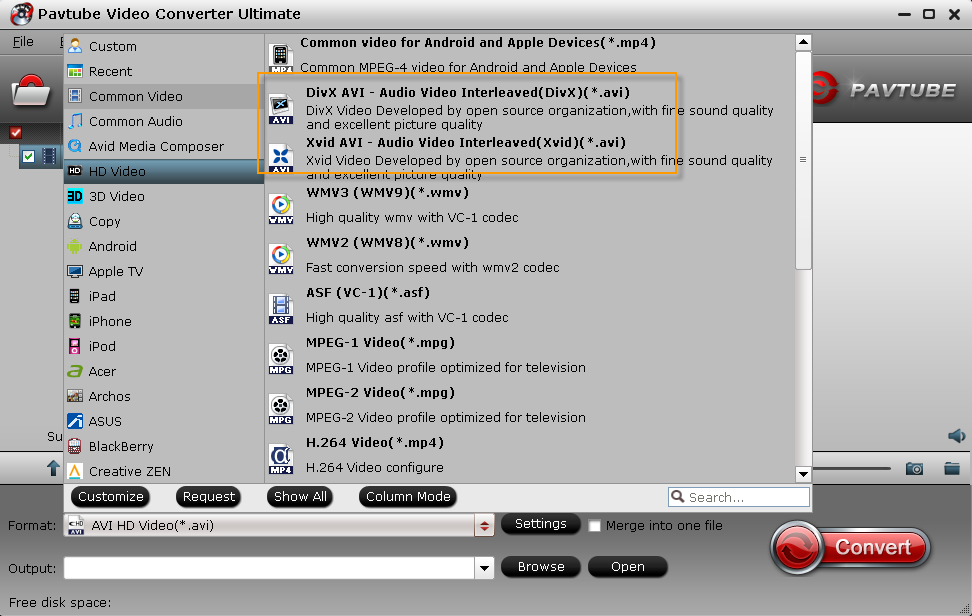
Step 4: Click the "Convert" button to start adding ASS to AVI video, when the conversion is completed, the subtitles file will be embedded into the output AVI video. Now you can play your AVI files with subtitles anywhere.
Note: Once you have merged subtitle text and video into one file, the subtitles would be hard subtitles and become a part of video, in other word, you cannot turn it on or off during playback.
More Articles
Convert Blu-ray to multi-track AVI on Windows 8.1/8
Extract .Srt Subtitles From Blu-Ray Disc/BDMV/BD ISO
The best solution to play AVI videos on Kindle Fire HDX Smoothly


