Maybe you are a movie lover, and have many collection of classic Blu-ray discs! I think after this summer, you will have more collection. But if you want to play Blu-ray disc directly, you need a Blu-ray and an external Blu-ray drive and if you want to play 3D Blu-ray, in addition to ensuring that all the devices are connected outside intact, you still need a pair of glasses, for myopia of us, a little unconvenient. If we travel outside and want to watch these movies, we must carry all of them, which may increases the burden on our journey, but also is harm for our collection Blu-ray discs. And now more and more people would rather watch video by phone than on TV or computer, which is very good perspective. With the help of wireless, we more often use mobile phone or tablet instead of computer or TV. But phone and tablet can not play Blu-ray Disc. I think this is the question everyone wants to solve.

Don't worry! we only need to use third-party software to convert Blu-ray to format file we need, we can transfer video files converted successfully to our various handheld devices, then we can you can play them. But for Blu-ray discs, we are more concerned about how to play 3D Blu-ray and enjoy 3D effects at home. To rip Blu-ray to side-by-side 3D MP4 video, Pavtube BDMagic (Pavtube Blu-ray Ripper) is the best 3D Blu-ray to Side-by-Side 3D ripper to assist you with ripping Blu-ray to side-by-side 3D MP4. Not only that, it can achieve 2D to 3D conversion, that is, if you have no 3D Blu-ray discs, but also can enjoy 3D video effects. its backup function is very powerful, it can full copy the disc and directly copy your Blu-ray discs without any quality loss. With the help of NVIDIA CUDA technology and AMD ? Accelerated Parallel Processing (APP), its conversion speed is very fast.
The contents below guide you through the process of copying Blu-rays to MKV/MP4 movies in side-by-side 3D format.
First, free download and install the Pavtube BDMagic on your PC, if you are using Mac, you can download Pavtube BDMagic for Mac, which is version for Mac user.
1. Load Blu-ray into the best 3D BDMagic.
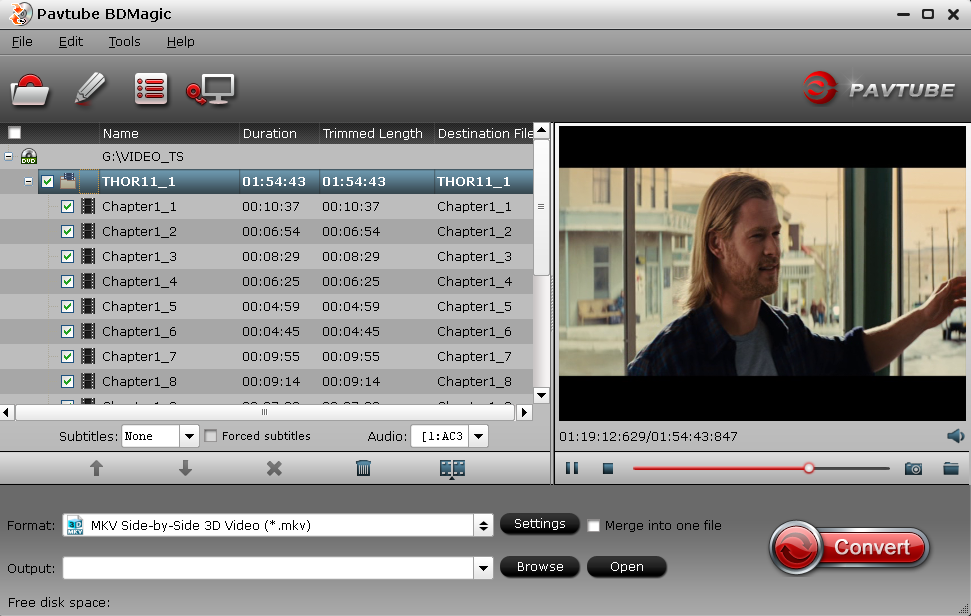
Open up the BDMagic, click "Load file(s)" button to load Blu-ray files directly from your Blu-ray disc, this requires an internal or external Blu-ray drive. You can also load a Blu-ray ISO image file or a Blu-ray folder that stored on your computer's hard disk drive.
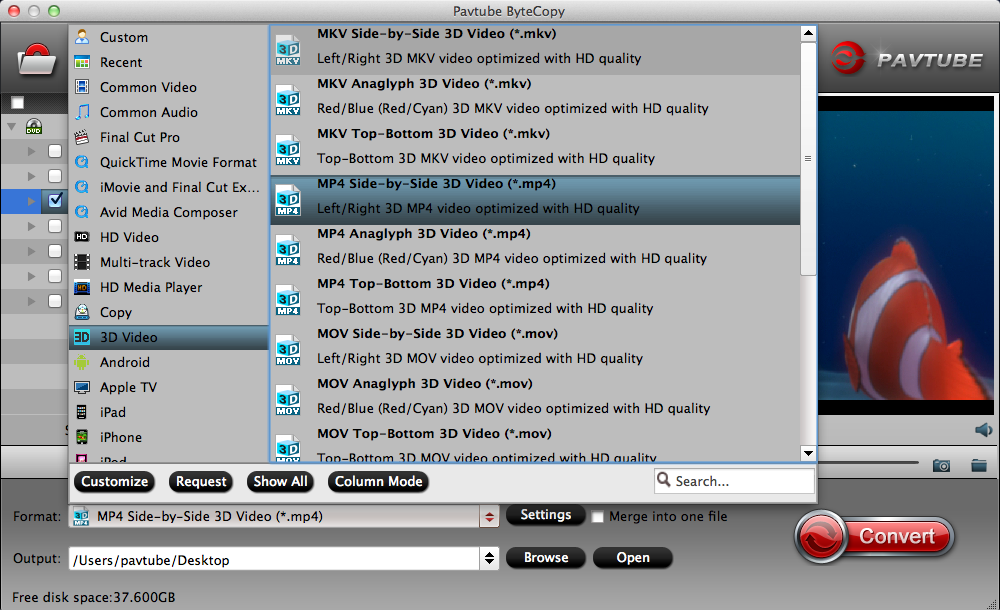
2. Select 3D format as output.
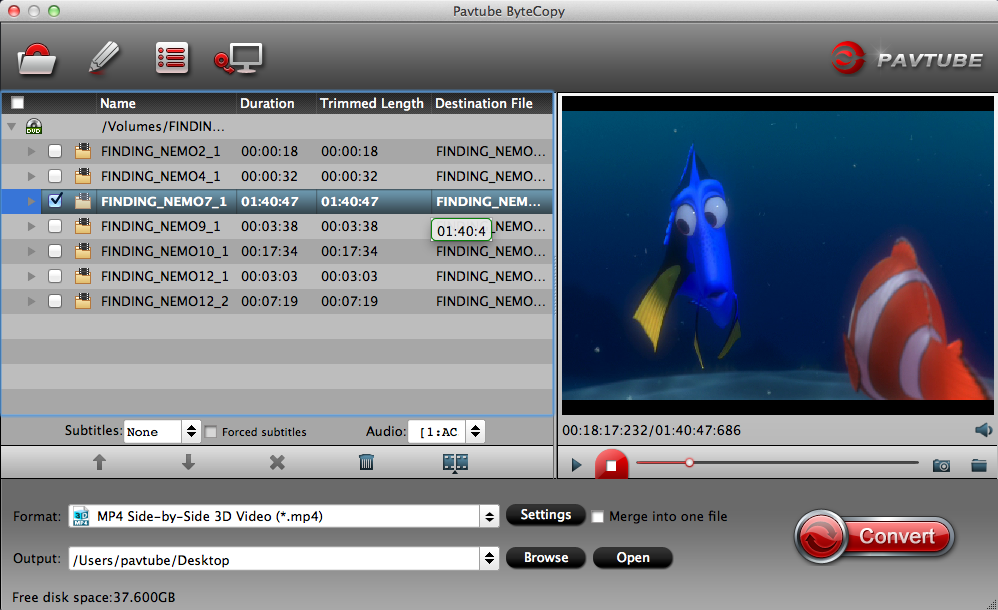
From the Format bar, find "3D Video" catalogue, and choose either "MKV Side-by-Side 3D Video (*.mkv)" or "MP4 Side-by-Side 3D Video (*.mp4)" as output.

If you want to convert your Blu-ray to your phone or tablet, you can choose other format suported by the devices, and after the completion of the third step, you can transfer the video to your devices.
3. Start conversion.
Click "Convert" button to start Blu-ray to 3D MKV or MP4 conversion in side-by-side mode. Once the conversion finished, you are able to get the generated 3D MKV or MP4 files via clicking "Open" button with ease.
When play the MKV or MP4 side-by-side 3D Blu-ray rips on your LG TV, you may find it comes up as 2 spilt screens, how can you watch it as a full screen? Do as below:
"Hit the 3D button on your LG remote, a window pops up saying put on your glasses, okay. Another window appears showing your 3D choices: 2D to 3D conversion, side-by-side, stacked, etc. Pick the one that matches, I mean side-by-side. This kind of file doesn't normally have the necessary signaling to tell your 3DTV to automatically switch into 3D mode, so you will have to manually do it. But that should be all you have to do. Also, don't forget putting on your glasses."
Tip: International mainstream streaming media player:Chromecast VS Apple TV VS Roku 3
More guides for you
How to convert Blu-ray/DVD for playback on the Roku 3 through USB stick
Watch Bluray discs on my Android Smartphone with HD H.264 MP4 format
Backup Blu-ray movies in MP4/MKV to watched on personal computer running Win 7